Paste or drop
Use CtrlV, drag a file in, or open an image. PNG, JPEG, and WebP work.
A tiny Windows screenshot tool
Quickly soften names, messages, and other sensitive bits. Paste an image, drag to select, then copy it straight back to your clipboard.
Three quick moves
Keep your flow in the app you already use. Censor Quick sits between the screenshot and the send button.
Use CtrlV, drag a file in, or open an image. PNG, JPEG, and WebP work.
Mark a name, a notification, or anything else you want softened. The fade runs into the surrounding image.
Press CtrlC and paste the edited image wherever you need it.
Made for the moment after Print Screen
No project setup or export dialog. The image opens to its size, and the whole window is the canvas.
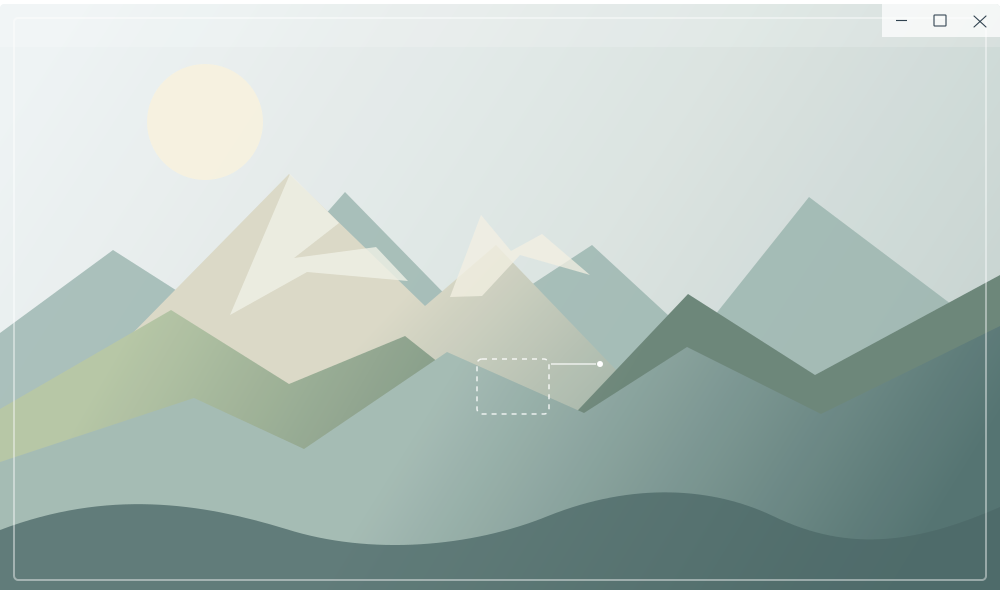
Before the blur, the selected pixels are shuffled within a local color palette. The resulting texture stays close to its surroundings, then fades softly at the edge.
For information that must be removed with certainty, use an opaque cover. A blur is a visual treatment.
Small on purpose
A compact, borderless desktop window with familiar paste, drag, and copy shortcuts.
Images are handled locally in the app. Censor Quick has no upload flow or account.
The window fits the image. Select any area and continue with the copy already on your clipboard.
Free download
A small, free tool for Windows. Download the portable build, open it, and paste your image.
Download for Windows